sunnuntai 14. huhtikuuta 2019

Apple finally kills illegal RSIM 13 iPhone unlocks


APPLE BLOCKS THE RSIM 13 UNLOCK BUG

The ICCID activation bug that allowed users to unlock any iPhone has finally been patched by Apple. We tried using RSIM 13 on two devices on iOS 12.1.2 with a functional ICCID but to no avail.

Kinglock, the unlocking expert at the GSM-Forum, has also confirmed the same, stating that Apple has patched the unlock bug and iOS 12.1.4 and below versions will no longer support RSIM 13.

For the uninitiated, RSIM, like the Gevey SIM, is a special SIM tray that can unlock an iPhone to any carrier. It has been the mainstay unlock solution for iPhone users for years.


Going forward, you will not be able to unlock your iPhone without upgrading to iOS 12.2 or above should you factory reset it. If you decide to use RSIM 13 again, your device will display an activation error.

With unlocking getting harder, ICCID numbers have become harder to come by.

Moreover, Apple is also patching functional ICCID numbers at a much faster pace now. It doesn’t take more than a few hours for an ICCID to go kaput.
RSIM 12 CAN STILL UNLOCK ANY IPHONE

No matter the current status of the unlock industry, the cat-and-mouse game isn’t over yet. You can still get an RSIM 12 to work.

There are, however, a few caveats that you must keep in mind –


Firstly, the iPhone operating system must be iOS 12.2 or above (without a jailbreak installed) or else the unlock will not work.


Secondly, the user must keep the interposer SIM inside the iPhone at all times. The unlocked status will be reset if the RSIM is removed.
WHAT NEXT?

Some oblivious users who ordered a new interposer SIM card or performed a factory restore have ended up with a carrier-locked iPhone.

If you are a jailbreaking enthusiast, don’t try to factory reset or upgrade your Apple device for the time being.

According to one of our sources, Chinese manufacturers are working on a new card capable of unlocking a device on any firmware version.


The iPhone unlock market is huge and unlocking is big business for the illegal gray market SIM manufacturers and stores alike.

With so much money on the line, someone just has to come up with a working replacement for the RSIM.

Were you affected by Apple’s decision to patch the ICCID activation bug? Let us know in the comments section below.

Sponsor ads:

Gihosoft Free iPhone Data Recovery:https://www.gihosoft.com/iphone-data-recovery-free.html

Gihosoft iPhone Data Recovery Free

Free iPhone Data Recovery Software for Windows/Mac

Recover up to 12+ types of files, including contacts, SMS, photos, WhatsApp, Viber, notes, etc.

Restore lost data from iOS devices directly or from iTunes and iCloud backup

Recover iPhone data lost due to iOS upgrade/jailbreak, accidental deletion, device lost or broken

Support all the latest iPhone, iPad and iPod Touch

Both Free and Pro version.

If you lost data after you updated to a new iPhone, you can always use Gihosoft iPhone Data Recovery to get the data back from the old iPhone or backup. You may also like:iphonerecovery.com

If you use android phones, please choose Gihosoft Android Data Recovery.With Gihosoft Android Data Recovery, no longer afraid of data loss!

Must read:Youtube video downloader for pc

Also Read:sites Like PrimeWire

Also Read:KissAnime Alternative Websites

Are the AirPods Sweat or Water-Resistant?

Are the AirPods Sweat or Water-Resistant?


The AirPods absolutely dominate the wireless Bluetooth earbuds category. But despite Apple essentially inventing the category and now leading it, the AirPods are far from perfect. Despite all the features that AirPods pack, Apple has made its water-resistance capabilities a bit of a mystery. Are the AirPods sweat- or water-resistant or not?

Given that AirPods would be used by many while working out, sweat-resistance is definitely an important aspect. Apple’s spec page does not talk about the water-resistant capabilities of the AirPods as well. That’s true for the original AirPods as well as the recently released AirPods 2. But then people frequently use their AirPods in the gym without any issues and for many, their AirPods have survived a wash in the washing machine as well. Does that make the AirPods water-resistant?
Are the AirPods Water-Resistant?

No, they are not. Both first and second generation AirPods are not water-resistant. They do not carry an IP certification which means they are not dust or water-resistant. What this means is that you should not expect your AirPods to survive a dip in the swimming pool or expose it to any form of liquid for an extended period of time.
Are the AirPods Sweat-Resistant?

Sadly, no. The lack of any kind of IP certification means the AirPods are not sweat-resistant as well. This does not mean you cannot use the AirPods while working out. Until and unless you sweat a lot or are into some form of heavy training which makes you sweat like a pig, you can wear your AirPods without any worries.

Many people have reported that their AirPods have survived a washing machine wash but that does not make them water-resistant. It is just the way that Apple has engineered the AirPods that it is able to survive a limited amount of exposure to any kind of liquid. You can rest assured that your AirPods will certainly not survived being dipped in the pool or if you spill a glass of water over them.

The lack of any kind of water and sweat-resistance means that if you ever end up liquid damaging your AirPods, Apple is not going to replace it for you under warranty.


If you want truly wireless Bluetooth earbuds for your iPhone which are sweat-resistant, you should check out the Powerbeats Pro. It is offered by Apple itself just under the Beats branding. It has a slightly different (ear hook) design when compared to the AirPods but offers better sound quality, longer battery life, and is certified sweat-resistant.

What this means is that you can use the Powerbeats Pro without worrying about any kind of liquid damage while working out. In fact, Apple itself markets the Powerbeats Pro for athletes, with its longer battery life vs the AirPods 2 being another plus. The Powerbeats Pro do lose out on a wireless charging case like the AirPods but given the longer battery life that it offers, I doubt many people are going to complain about it.

The better sound quality, sweat-resistance, and longer battery life offered by the Powerbeats Pro do come at a cost though. It is priced notably higher than the AirPods which starts at $159. In comparison, the Powerbeats Pro comes is priced at $249.95. They are not yet on sale but will hit the market before the end of this month.Sponsor ads:

Gihosoft Free iPhone Data Recovery:https://www.gihosoft.com/iphone-data-recovery-free.html

Gihosoft iPhone Data Recovery Free

Free iPhone Data Recovery Software for Windows/Mac

Recover up to 12+ types of files, including contacts, SMS, photos, WhatsApp, Viber, notes, etc.

Restore lost data from iOS devices directly or from iTunes and iCloud backup

Recover iPhone data lost due to iOS upgrade/jailbreak, accidental deletion, device lost or broken

Support all the latest iPhone, iPad and iPod Touch

Both Free and Pro version.

If you lost data after you updated to a new iPhone, you can always use Gihosoft iPhone Data Recovery to get the data back from the old iPhone or backup. You may also like:iphonerecovery.com

If you use android phones, please choose Gihosoft Android Data Recovery.With Gihosoft Android Data Recovery, no longer afraid of data loss!

Must read:Youtube video downloader for pc

Also Read:sites Like PrimeWire

Also Read:KissAnime Alternative Websites


tiistai 2. huhtikuuta 2019

Solve Error 1009 App Store


People using smartphones tend to download numerous apps every day. Same is the case with iPhone users and the apps downloaded from iTunes. But many a times, few users come across many errors when they try to download apps, to name a few we have Error 1009 App Store or Error 1009 iPhone.
Usually, iPhone error code 1009 is seen when an Apple considers an IP address as some destination that the App Store doesn't supports or your iOS device is applicable for the default proxy settings. The iPhone's default settings and the purchaser's country are in configuration. Also, jailbreaks are another reason that causes issues such as "error code 1009 can't download apps". Let us now see some of the best methods to solve this issue.

1. Reset Proxy Settings

Another reason behind your error 1009 App Store can be the inappropriate proxy settings. Proxy settings might give problems if one tries to download apps particularly from iTunes. Latest iOS device models include auto proxy settings which synchronize your device with iTunes with no requirement of manual settings. To fix your issue, simply reset setting with below steps.

Step 1: Go to Settings >> Wi-Fi >> and select active network. Now tap the tiny arrow beside.

Step 2: Tap HTTP Proxy settings. If proxy settings are to be manually configured, then tap Manual >> provide the Server IP address as well as the port details.


Step 3: Provide password of proxy server if asked and enable it. Now just provide the details such as username–password in order to activate.
2. Reset Proxy Settings

To solve error code 1009 issue, VPN service can also be very helpful many a times. Follow below steps to solve your problem. You can get VPN service through various ways such you can go for any paid or free VPN service and simply Google the VPN and get the host of paid and free options. Also make sure the proxy is set to your location. You can also get the VPN app downloaded to your iTunes account and install it. The VPN app further then synchronizes with iTunes. Once you have got VPN service, follow below steps on your iPhone to set VPN service.

Step 1: Go to Settings >> General >> VPN. Now select the configuration you prefer and simply add it.


Step 2: In option Add Configuration, provide details such as Server, Description, Account and Password.

Step 3: All you need to do is check the option Proxy Off.
3. Upgrade the Firmware

If the issue is still not resolved, try upgrading your device's firmware to the latest one. The upgradation of firmware might help solve your issue. Also take a note that if you have downloaded the original s/w in one country and you are trying to upgrade it in some another country, there might be some issue in doing so. As the s/w was installed in a particular country originally, its updates as well as downloads should also take place in that country only.
4. Try Downloading Other Apps

Simply try checking if you are encountering the error code 1009 can't download apps only with some particular app or all of the apps. For this, try downloading other app and check if the problem persists. Verify if any other similar app is getting downloaded from iTunes. In case you are able to download other apps, ask the app developer to rectify the configuration errors. Also, you can ask the developer of the app to help you solve the issue. If you cannot download other apps, just refer to: iPhone Cannot Download or Update Apps.


5. Check For the Apple System Status Page

There are times when the problem is not with your iOS device or with your iTunes but the problem lies in App Store server. Sometimes the Apple Store server itself is down for some reason; may be maintenance. In such cases you will encounter the error code 1009. For this, check if the server is working or not by simply going to the Apple system status page, which you will get on the official site. If the server is down, waiting and having patience is the only solution.


Summary:

The above article has discussed the best 6 ways to solve "cannot process the request, error code 1009 iPhone" this issue. Error 1009 iPhone is considered as a very general issue which is associated with the compatibility of software. The error is not at all associated with the hardware, so do ont bother taking your device to Apple Store/Customer Care. The best solution of all the above is Tenorshare ReiBoot; it will surely help to connect back to the iTunes and makeSponsor ads:

Gihosoft Free iPhone Data Recovery:https://www.gihosoft.com/iphone-data-recovery-free.html

Gihosoft iPhone Data Recovery Free

Free iPhone Data Recovery Software for Windows/Mac

Recover up to 12+ types of files, including contacts, SMS, photos, WhatsApp, Viber, notes, etc.

Restore lost data from iOS devices directly or from iTunes and iCloud backup

Recover iPhone data lost due to iOS upgrade/jailbreak, accidental deletion, device lost or broken

Support all the latest iPhone, iPad and iPod Touch

Both Free and Pro version.

If you lost data after you updated to a new iPhone, you can always use Gihosoft iPhone Data Recovery to get the data back from the old iPhone or backup.You may also like: iphonerecovery.com

If you use android phones, please choose Gihosoft Android Data Recovery.

With Gihosoft Android Data Recovery, no longer afraid of data loss!

Must read:Youtube video downloader for pc

Gihosoft RePicvid Free Photo Recovery Software provides a free photo recovery software for windows to help users recover the deleted or lost photo for free.

Jihosoft Android Data Recovery: the best Android Data Recovery software for Windows and Mac to recover deleted contacts, messages, photos, videos, WhatsApp and etc from Android devices.Tips:How to transfer messages from iPhone to iPhone

Jihosoft File Recovery:Recover deleted, Lost, formatted, or corrupted files from PC, flash drive and memory card easily & safely

Also Read:Update Android

Also Read:Top 8 Best Alternative Websites to TamilGun in 2019

Also Read:Free Download FRP Bypass APK for Android 2019

Also Read:Best 10 Movie4k Alternative Websites for Movie Streaming 2019

Also Read:Top 32 Best Proxy and Mirror Sites to Unblock Fmovies 2019

Also Read:Best Torrent Search Engine Sites to Find Your Favorite Torrents 2019

Also Read:5 Best Sites Serving as Alternatives to TheWatchSeries Online 2019


tiistai 26. helmikuuta 2019

How to Back Up iPhone


1. How to Back Up iPhone with iTunes Normally?

As mentioned, there is an official Apple method for backing up your iPhone. You can simply follow the directions on Apple's own website. You can find instructions here: https://support.apple.com/en-us/HT203977.


The Pros and Cons of Backing Up Your iPhone With iTunes

There are both advantages and disadvantages to backing up your iPhone with iTunes. Let's take a look:

Pros:


It's free. The iTunes service can be freely downloaded from the official Apple site, and it's available for all kinds of platforms.


It comes from Apple, so you know it's safe. You don't have to worry about any malware infecting your computer from iTunes.


There are no limits imposed by Apple as to what you can store in your backup. It is stored on your computer, so it is only limited by your available hard drive space.

Cons:


You cannot selectively back up the data on your iPhone. In other words, you can't pick and choose what data you want to put in the backup and what data you don't.


When you back up phone to iTunes, it will overwrite the old ones.


Sometimes you may encounter an iTunes error. iTunes can occasionally have bugs.
2. The Difference Between iTunes Backup and iCloud Backup

Apple offers one other option—you can back up your iPhone using iCloud instead of iTunes. If you don't already know, iCloud differs in a few key ways from iTunes:


If you use iCloud to make a backup, it will be stored on “the cloud.” In other words, it will be on an external server, not your computer. This has good points and bad points. It's convenient, but it's less secure.


To load your backup on your phone, you will need to download it via the Internet, of course.


You will also need an Internet connection to make and save the backup in the first place.


With iCloud, you can conveniently have your phone make automatic backups every once in a while.

BTW, if you need, you can learn how to do an iCloud backup via the link we discuss in the beginning of the article.Sponsor ads:zedge ringtone download

how to find wifi password on iphone
3. How to Back Up Your iPhone without Less Restrictions?

Sponsor ads:

Gihosoft Free iPhone Data Recovery:https://www.gihosoft.com/iphone-data-recovery-free.html

Gihosoft iPhone Data Recovery Free

Free iPhone Data Recovery Software for Windows/Mac

Recover up to 12+ types of files, including contacts, SMS, photos, WhatsApp, Viber, notes, etc.

Restore lost data from iOS devices directly or from iTunes and iCloud backup

Recover iPhone data lost due to iOS upgrade/jailbreak, accidental deletion, device lost or broken jihosoft Free iPhone Data Recovery
Support all the latest iPhone, iPad and iPod Touch

Both Free and Pro version.

If you lost data after you updated to a new iPhone, you can always use Gihosoft iPhone Data Recovery to get the data back from the old iPhone or backup.You may also like: iphonerecovery.com

If you use android phones, please choose Gihosoft Android Data Recovery.

With Gihosoft Android Data Recovery, no longer afraid of data loss!

Must read:Youtube video downloader for pc

Gihosoft RePicvid Free Photo Recovery Software provides a free photo recovery software for windows to help users recover the deleted or lost photo for free.
Jihosoft Android Data Recovery: the best Android Data Recovery software for Windows and Mac to recover deleted contacts, messages, photos, videos, WhatsApp and etc from Android devices.Tips:How to transfer messages from iPhone to iPhone


keskiviikko 20. helmikuuta 2019

Does iTunes Backup Photos


Part 1: What Does iTunes Back up?

The following is a list of file types that you can back up using iTunes.

- Photos that are stored in your camera roll

- Video files, movies and music files including other media files

- Messages and contact lists, call logs and voice messages

- App related data such as settings, documents, app data purchased from the app store etc.

- Other system settings including those of your network such as Wi-Fi configuration, VPN etc.

- Things like memos, calendars, reminders, safari bookmarks

- Caches, temporary internet files and other offline data can also be backed up


Part 2: How to Backup iTunes Photos using iTunes

Now that you know what kind of files iTunes backs up, you may now follow the steps mentioned below to back up your photos.

Step 1. Launch iTunes on your computer and connect your device to the computer

Step 2. Click “File” and then select “Device”.

Step 3. Choose “Back Up” from the options. iTunes will automatically back up the data on your device.

You may check the details of your back up by going to “Preferences” by clicking on “iTunes” on the top-left corner.


Part 3: Where Does iTunes Back up Photos?

The backups are stored in different locations depending upon the operating system that you may have.

For those who are on a Mac, the backup is stored in ~/Library/Application Support/MobileSync/Backup/.

For those on Windows Vista or 7 and later versions, the backup is stored in \Users\(username)\AppData\Roaming\Apple Computer\MobileSync\Backup\.

You may however need to unhide hidden files on Windows in order to view the location where your back up is stored.


Part 4: Does iCloud Backup Photos? How to Backup using iCloud?

iCloud automatically stores the photos that you take. The iCloud Photo Library does this whenever you take a photo or record a video. However, it only does this if you have enabled iCloud back up in Settings.

In order to do so, you need to go to Settings -> iCloud -> Photos -> iCloud Photo Library. You can then turn on the option.Sponsor ads:

Gihosoft Free iPhone Data Recovery:iphonerecovery.com

Free iPhone Data Recovery Software for Windows/Mac

Recover up to 12+ types of files, including contacts, SMS, photos, WhatsApp, Viber, notes, etc.

Restore lost data from iOS devices directly or from iTunes and iCloud backup

Recover iPhone data lost due to iOS upgrade/jailbreak, accidental deletion, device lost or broken

Support all the latest iPhone, iPad and iPod Touch

Both Free and Pro version.

If you lost data after you updated to a new iPhone, you can always use Gihosoft iPhone Data Recovery to get the data back from the old iPhone or backup.

Top 10 Best FRP Bypass Tools to Bypass Google Account on Android Device 2019

Worth reading:download youtube 1080p

If you use android phones, please choose Gihosoft Android Data Recovery

Jihosoft Android Data Recovery: the best Android Data Recovery software for Windows and Mac to recover deleted contacts, messages, photos, videos, WhatsApp and etc from Android


Part 5: How to Preview and Selectively Backup iPhone Photos?

Backing up your photos and other files using iTunes is quite a common practice among iTunes users. However, using iTunes is not easy and there are certain restrictions to the type of files you can back up.

lauantai 14. heinäkuuta 2018

Best Cydia Tweaks for iPhone X iOS 11.3.1 - 11.4 Electra Jailbreak 2018-2019 Guide


Finally, iPhone X is Jailbroken and it’s time to add some Best Electra Cydia Tweaks for iPhone X running iOS 11.3 – iOS 11.4 Beta Electra Jailbreak.


iPhone X has a beautiful notch design with full body display and I am sure some amazing Cydia Tweaks are developed to match this tech.If you accidentally deleted or lost videos on iPhone, first please check on the Recently Deleted folder. Alternatively, you can use the professional tool Gihosoft iPhone Recovery to recover deleted iPhone videos from Camera Roll or some apps.


I have listed some Best Electra Cydia Tweaks for iPhone X that works 100% fine without any errors. But before that, you should add some repo/source in order to install these tweaks which we will mention later.


Best Electra Cydia Tweaks for iPhone X running iOS 11.3.1 – 11.4 Jailbreak


NudeKeys – iOS keyboard customization


SmoothCursor – Get a smooth cursor animation while typing texts


iCleanerPro – Clean junk files from an iOS device


LeadMeHome – Easily find app icons on Home Screen


RealCC – Completely disconnect WiFi even if disabled from Control Center


NoMoreSmallApps – Resize apps to fit the iPhone X screen


SimplePasscodeButtons – Hide number and letters from Passcode button


9Folderz – Get the iOS 9 folder icon


SugarCane – Add percentage icon on iOS 11 Control Center Sliders


PullToRespring – Respring your device just by going to the Settings app and pull down from the top


StatusSwitcher – Show the status bar in App Switcher


CertRemainTime – Check how much time is remaining before the Electra app’s certificate expires.


IGDarkMode – Add dark mode to Instagram app


TweakCompatible – Check Cydia Tweak Compatibility


SwipeForMore – Install/Remove Cydia tweaks with a Swipe


NoPageDots – Remove page dots from Home Screen


Goodges – Displays the notification count of an app in its Home screen label


Floating Dock – Get iPad-Like Dock on iPhone


Safari Full URL – Display full URL in Safari


Flame – A great addon to Cydia


Filza – A file manager that gives root access to the iOS file system


Cylinder – Get great animations while swiping from one page to another on a home screen


Dark Messages – Add Dark Mode to Messages App


RomanPasscode – Get roman numerals in Passcode


Rocket For Instagram – An addon to Instagram


DateUnderTimeX – Shows date just under the time on the top left corner of the iPhone X


DoubleTapLock – Double tap from anywhere of the screen to lock the device


EasySwitcherX – Close app from the App Switcher without holding it. Just swipe up to close an app just like in iOS 12


ForceInPicture – Watch a video on springboard while you use other apps on your iPhone X


PercentageBatteryX – Get battery percentage information inside the battery icon on iPhone X


SpotCC – Launch Control Center just by swiping down from the middle of the screen


VideoHUD – Get a minimalistic & clean volume icon


RealCC – Permanently disconnects WiFi & Bluetooth from the Settings app when enabled from Control Center

Gihosoft Free iPhone Data Recovery is a professional iPhone Data Recovery software to get back all your lost text message, photo, video, call history, note, contact and more from iPhone/iPad/iPod Touch. It offers a full solution to recover your lost data in different tough situations. Besides recovering data directly from iPhone, iPad and iPod touch, it also allows you to recover data from iCloud and iTunes backup files.


As we have already mentioned, some tweaks require extra Cydia Sources that you need to add. Here are those Cydia Sources/Repos:Related Articles:How to Download twitch videos


Cydia Sources:


SpotCC: http://imkpatil.github.io/repo/ Silo: https://packix.ioscreatix.com/


Don’t Miss: Best Cydia Source | Repo for iOS 11.3.1 – iOS 11.4 beta Electra Jailbreak


How to install Cydia Tweaks on iPhone X Electra Jailbreak


Launch Cydia


Search any tweak that you want to install fro the search bar


Tap Install Related Articles:Youtube video cutter

Tap Confirm

Other Free and compatible tweaks are also coming so be sure to check out iMangoss every day. Also, check other useful Cydia Tweaks and Themes for Electra iOS 11.3.1 Jailbreak


perjantai 13. heinäkuuta 2018

How to Unblock a Phone Number on Your iPhone 2018 Guide


Unblock Phone Numbers in Settings

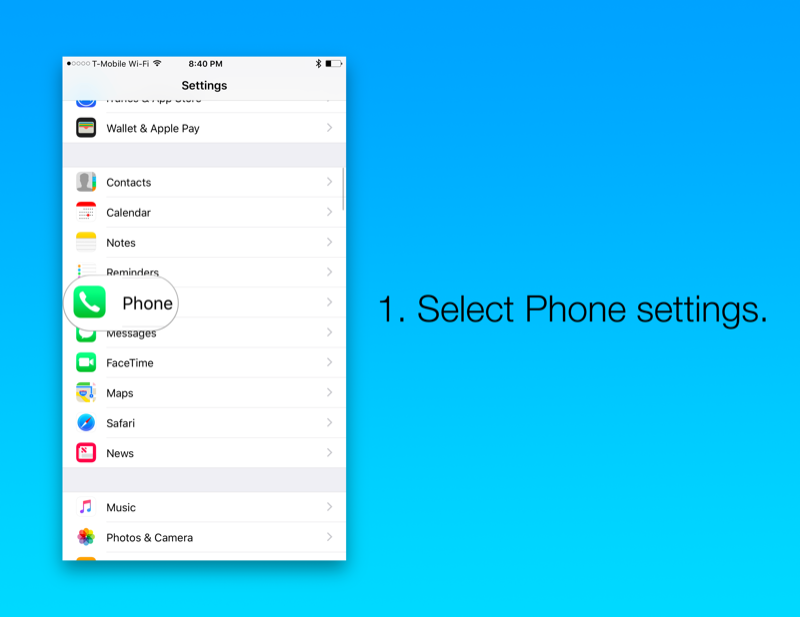
First, open Settings on your iOS device. Scroll to Phone.


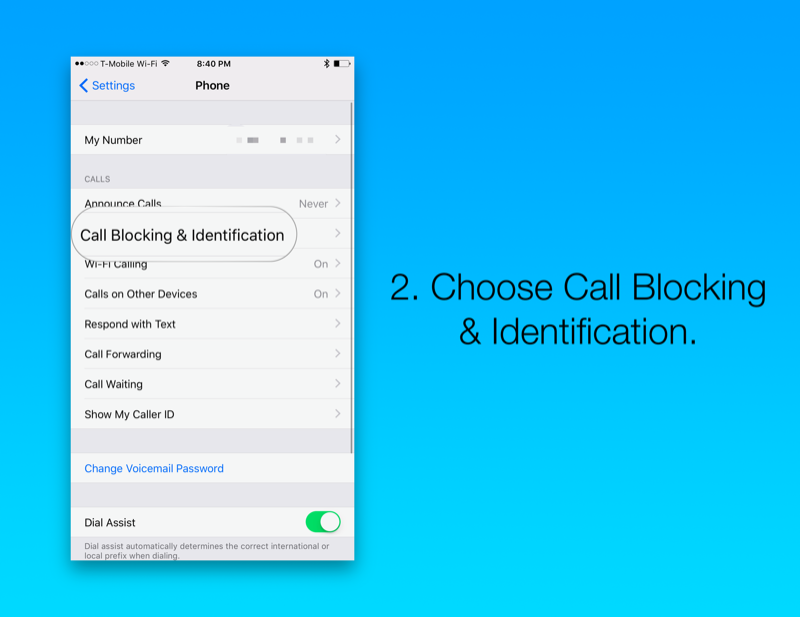
Now choose Call Blocking & Identification.If you accidentally deleted or lost videos on iPhone, first please check on the Recently Deleted folder. Alternatively, you can use the professional tool Gihosoft iPhone Recovery to recover deleted iPhone videos from Camera Roll or some apps.


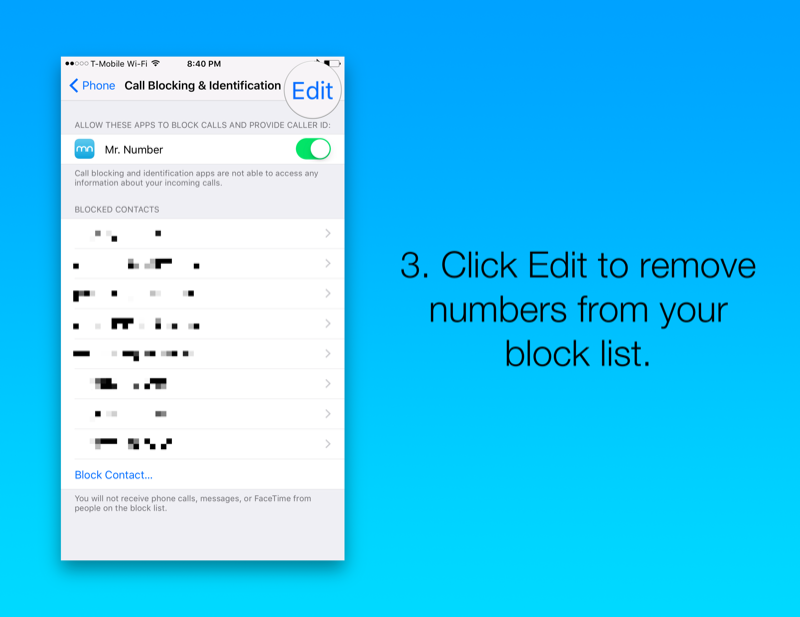
Here you’ll find a list of numbers you’ve blocked. Additionally, if you use apps to manage blocked numbers or spam, you might see it at the top as well.


Tap Edit at the top right to edit your block list.


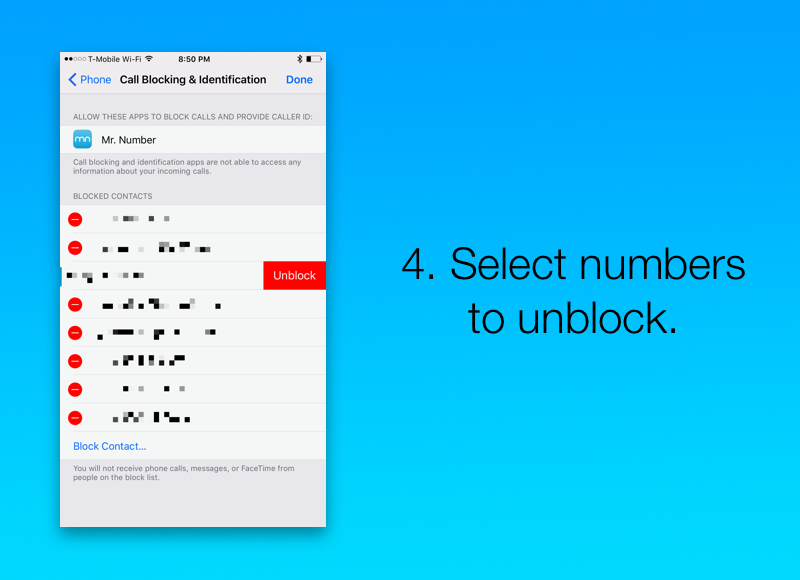
Tap the red symbol to the left of a number or email on the block list. You can only do this one at a time.

Finally, tap Unblock as it appears next to the contact. Doing so will allow phone calls, messages and FaceTime calls from that number.

One last tip: your block list is also available in your Messages settings as well as FaceTime settings. Just tap Blocked in either of these to get the same list as in Phone

ADVERTISEMENT

settings.


Best Mac CPU Monitor to Check and Boost Your Mac’s Performance

How to Comprehensively Monitor Your Mac with Umate Mac Cleaner Some heavy CPU consumer processes, startup programs (also named login items),...